7 Tips for Choosing the Best USB C Adapters?
Choosing the right Usb-C Adapters can feel simple until a laptop refuses to charge, a monitor stays black, or a drive transfers files slowly. The connector may fit perfectly. The performance may still disappoint. Benson Leung, a Google engineer known for testing USB-C products, offers a practical warning: “Not all USB-C cables are created equal.” The same caution applies to adapters. Their internal chips, power limits, data standards, and heat management can vary significantly.
This guide introduces seven useful tips for choosing the best Usb-C Adapters for laptops, tablets, phones, and desktop workstations. It examines power delivery ratings, USB data speeds, display support, port selection, certification, build quality, and device compatibility. A 100-watt adapter may sound powerful, but it cannot improve a device limited to 65 watts. A hub with HDMI may also fail to support high-resolution video unless its specifications clearly list the required standard. Small details matter.
Check the labels carefully. Then check them again.
Practical testing should include charging under load, copying a large video file, and running an external display for several hours. Heat matters too. A warm aluminum shell can be normal, while excessive heat may signal poor design. Many buyers focus on price and port count. That is understandable, but incomplete. Even experienced users can overlook bandwidth sharing between ports. There is no perfect adapter for every setup. The goal is a reliable match between your devices, daily tasks, and realistic performance needs.
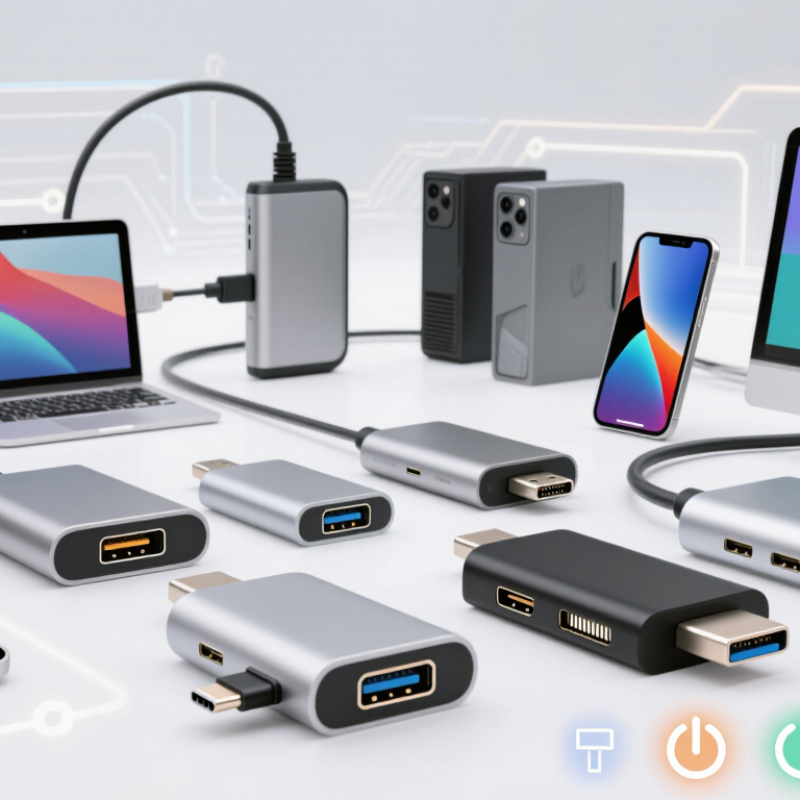
Understand USB-C Adapter Types and Their Intended Uses
Choosing the right USB-C adapter starts with identifying its intended use. A USB-C to USB-A adapter suits older keyboards, flash drives, and charging cables. A video adapter may support HDMI or DisplayPort, but the computer’s USB-C port must also support video output. Not every USB-C port does. Check the device manual before buying.
For desk work, a multiport hub can combine charging, display output, USB data, and memory-card access. A dock is better for a permanent workstation with several screens or wired networking. For travel, choose a small adapter with only the ports you use. Ethernet adapters help in hotels or offices with unstable wireless connections. Card readers are useful for cameras, but their speed depends on both the reader and the memory card. Keep that in mind.
Power delivery needs careful attention. Match the adapter’s rated wattage with your laptop or tablet’s requirement. A low-rated adapter may charge slowly or fail during heavy use. Data standards also matter. USB-C describes the connector shape, not guaranteed speed. Read the exact transfer rate and display resolution. My own mistake was assuming every USB-C hub supported high-refresh video. It did not. Heat can also reduce performance during long transfers. Touch the casing after use. Slight warmth is normal; excessive heat deserves caution. Reliable choices come from checking port functions, power limits, operating-system support, and return conditions before purchase.
Check Device Compatibility, Ports, and Operating System Support
7 Tips for Choosing the Best USB C Adapters?
Check the device specifications before comparing adapter prices. A USB-C socket may support charging, data transfer, display output, or only one function. I check the laptop’s manual and the adapter’s technical label together. A small symbol near the port can reveal important limits. Some ports support video through DisplayPort Alt Mode, while others cannot connect to a monitor. Do not assume that every USB-C adapter works with every computer.
Count the ports you genuinely need. A compact adapter may include HDMI, USB-A, a card reader, and power input. Check each port’s speed and maximum resolution. A port marked USB 2.0 may feel slow with large photo files. For external drives, faster data standards matter. Power delivery also deserves attention. Choose an adapter that can pass enough wattage for your device while charging connected accessories. I once focused on port quantity and ignored heat buildup. That was a poor choice.
Operating system support can affect the experience. Many adapters work without extra software, but some display or network functions may need drivers. Confirm support for your computer’s operating system and version before buying. Updates can change compatibility. Read recent technical documentation, not only customer comments. Test the adapter with your actual setup: a monitor, keyboard, storage device, and charger. It should remain stable during several minutes of file transfers. Tiny details matter. Loose connectors, unclear indicators, or a short cable can become daily frustrations.
Compare Data Transfer, Video Output, and Charging Performance
Choosing the best USB-C adapter starts with its data-transfer standard, not its port count. USB-IF specifications list USB 3.2 Gen 2 at 10 Gbps and Gen 2x2 at 20 Gbps. USB4 can reach 40 Gbps, while newer USB4 Version 2.0 supports up to 80 Gbps. These are maximums, not promises. Check the computer, adapter, cable, and drive together. In practical file tests, small files often transfer much slower because of overhead and heat. A sustained 100GB transfer reveals more than a brief speed-test result. I have found that compact adapters can become noticeably warm under heavy use.
Video output requires separate checking. VESA’s DisplayPort 2.1 specification supports bandwidth up to 80 Gbps, but the source device may offer less. Confirm whether the adapter supports DisplayPort Alt Mode, the required resolution, and the target refresh rate. A display may show 4K, yet fall from 120Hz to 60Hz. That difference is easy to miss. For charging, USB-IF’s USB Power Delivery 3.1 specification allows power levels up to 240W. Still, the adapter may reserve power for its own operation. Compare its pass-through rating with the laptop’s charger requirement. Also inspect thermal behavior, cable certification, port spacing, and warranty terms. One overlooked detail can undermine an otherwise impressive specification sheet.
Evaluate Build Quality, Safety Features, and Certifications
When I inspect USB-C adapters, I start with the shell, ports, and cable strain relief. A tight seam should not flex when pressed. The connector should fit firmly without scraping or wobbling. Look for heat-resistant materials and clear power ratings. Loose parts are warning signs.
Safety must come before appearance. USB-IF compliance testing covers electrical performance, interoperability, and connector requirements. A genuine certification mark from a recognized testing laboratory offers stronger evidence than attractive packaging. Check the certificate number when possible. CE marking alone does not prove independent safety testing.
Electrical Safety First reported that 397 of 400 counterfeit chargers failed at least one safety test. That figure deserves attention. Cheap construction can hide serious overheating risks.
I also consider long-term reliability. The European Commission’s 2022 common-charger impact assessment estimated about 11,000 tonnes of annual electronic waste linked to discarded chargers. A durable adapter may reduce replacements and waste. I once chose a compact model because it looked convenient. Its casing became warm during ordinary file transfers. That shortcut was careless.
Measure heat after fifteen minutes, not only during the first minute. Avoid adapters with vague wattage claims, missing input limits, or poorly printed markings. Keep the receipt and test every port before travel. Even certified products can fail, and my inspection is not a laboratory test.
Choose the Right Adapter for Your Setup and Budget
Choosing the right USB-C adapter starts with your actual setup and spending limit. I have seen users buy a cheap hub, then discover it cannot power a monitor and hard drive together. Check your laptop’s ports first. USB-IF specifications allow USB Power Delivery 3.1 devices to deliver up to 240 watts. That does not mean every adapter supports it. Read the wattage label carefully.
Bandwidth matters too. USB4 can support up to 40Gbps, but many affordable adapters operate much slower. IDC’s 2024 Worldwide Quarterly Personal Computing Device Tracker recorded over 260 million PC shipments worldwide. More computers now connect to displays, storage, cameras, and chargers through fewer ports. Choose an adapter with the ports you regularly use, not every port available. A two-port model may suit travel. A powered dock fits a desk better. Keep some budget for a reliable power supply.
I once treated price as the main deciding factor. That was a mistake. Look for stated support for display resolution, refresh rate, charging output, and data speed. A 4K monitor may need specific video support, while a portable drive benefits from faster transfer rates. Avoid vague phrases such as “high performance.” Ask for measurable specifications. Also check heat management, cable length, and warranty terms. Small details matter. Industry forecasts, including Grand View Research’s USB Type-C market analysis, indicate double-digit growth through 2030, but specifications remain inconsistent across products. I still prefer fewer ports with clear limits over a crowded adapter that creates surprises.